How to Make Your Phone Battery Last Longer: 12 Tips
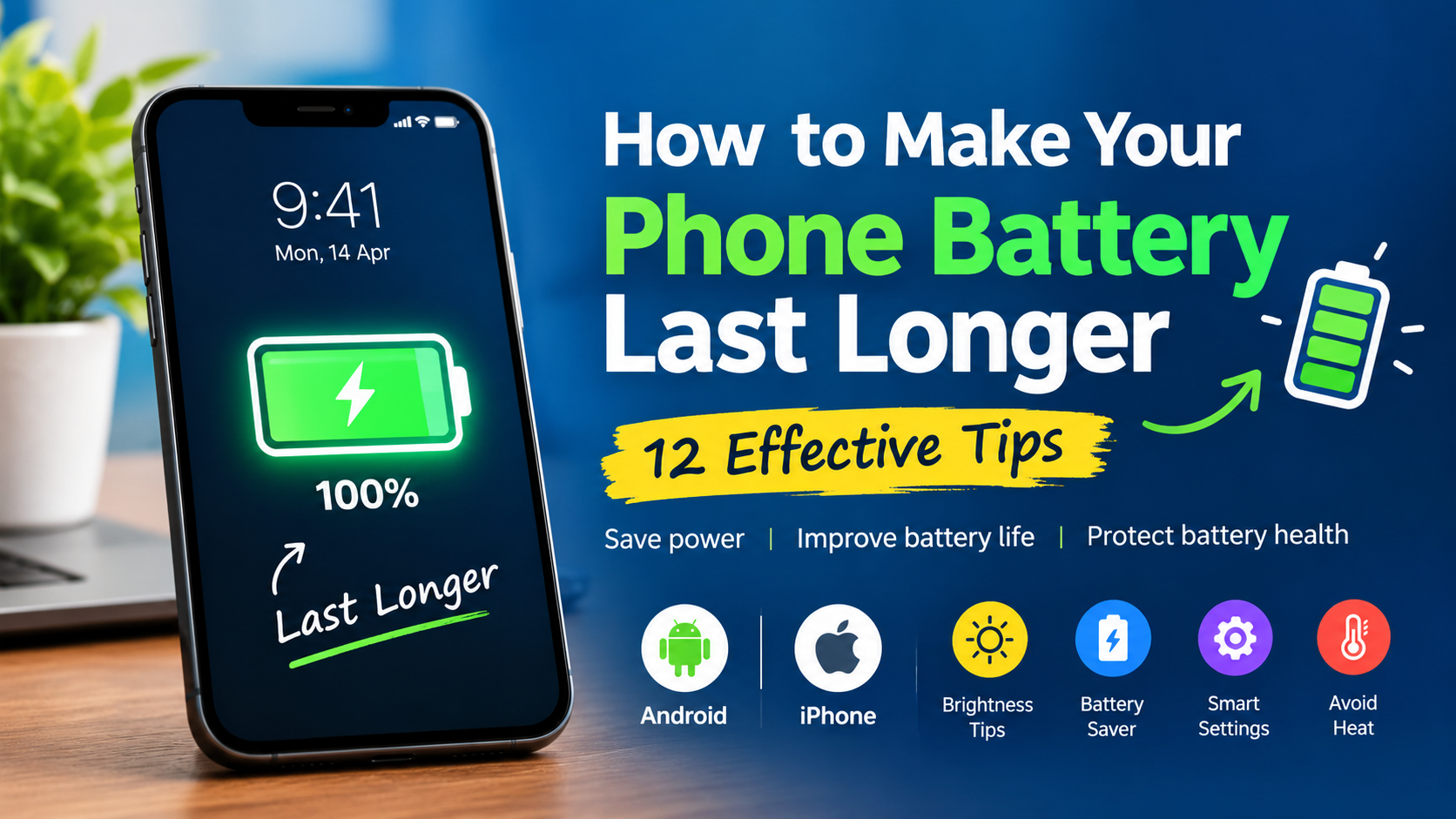
How to Make Your Phone Battery Last Longer: 12 Effective Tips
Does your phone battery run out before the day is over? It can be frustrating when you have to charge your smartphone several times a day, especially when you need it for work, browsing, or staying in touch with friends and family.
The good news is that you can often improve your battery life with a few simple changes. Learning how to make your phone battery last longer doesn’t require expensive accessories or complicated apps. Whether you use an Android phone or an iPhone, the right settings and charging habits can help you get more out of every charge.
1.How to Make Your Phone Battery Last Longer by Lowering Screen Brightness
Your phone’s display can use a lot of power, particularly when the brightness is set too high. If you spend hours scrolling through social media, watching videos, or reading articles, lowering the brightness can make a noticeable difference.
Try keeping your screen at a comfortable brightness level. You can also enable Adaptive Brightness on Android or Auto-Brightness on iPhone so your display adjusts automatically to the surrounding light.
2. Use Battery Saver Mode to Improve Phone Battery Life
Need your phone to last a few more hours? Battery Saver can help.
Most Android phones include Battery Saver, while iPhones offer Low Power Mode. These features reduce certain background activities and limit some power-hungry processes.
You don’t have to wait until your battery is almost empty to use them. Turn on the feature whenever you know you’ll be away from a charger for an extended period.
3.How Background Apps Affect Phone Battery Life
Some apps continue working even when you’re not using them. They may refresh content, synchronize information, or access your location in the background.
Open your phone’s battery settings and check which apps use the most power. If an app consumes more battery than expected, consider restricting its background activity or changing its permissions.
There’s no need to disable everything, though. Keep background access enabled for apps that need it to deliver important messages or other essential services.
4. Does Dark Mode Help Your Phone Battery Last Longer?
Dark Mode gives your phone a darker appearance, which many people find easier on the eyes at night. It may also help your battery last longer.
The biggest benefit is usually seen on phones with OLED or AMOLED displays, where darker pixels use less power. On LCD screens, the battery savings may be minimal.
If your phone supports Dark Mode, give it a try and see whether it suits your daily use.
5. Switch Off Features You Don’t Need
Bluetooth, mobile hotspots, and location services can contribute to battery drain, depending on how they’re used.
For example, there’s little reason to leave your mobile hotspot running after you’ve finished sharing your internet connection. You can also review location permissions and allow access only when an app genuinely needs it.
If your phone struggles to maintain a weak mobile signal, it may use extra power trying to stay connected. Connecting to a reliable Wi-Fi network when available can sometimes help.
6. Set a Shorter Screen Timeout
Have you ever put your phone down only to notice that the screen is still on a minute later? Those extra minutes can waste battery power throughout the day.
Go to your Display settings and set the screen timeout to 30 seconds or one minute. Your phone will switch off the display sooner when you’re not using it.
It’s a small change, but it can be useful if you often forget to lock your screen.
7. Keep Your Phone Away From Excessive Heat
Heat is one of the biggest enemies of long-term battery health. Leaving your phone in direct sunlight or inside a hot car can accelerate battery aging.
If your device becomes unusually hot while gaming, charging, or recording video, give it a break and let it cool naturally. Avoid covering it with thick materials while charging if that traps heat.
Never put a hot phone in a refrigerator or freezer to cool it down. Sudden temperature changes can cause additional problems.
8. Reduce Unnecessary Notifications
Every notification doesn’t use a lot of battery, but frequent alerts can wake your screen and trigger background activity.
Take a moment to review your notification settings. Turn off unnecessary alerts from shopping apps, games, and services you rarely use.
Keep notifications enabled for important calls, messages, and security alerts so you don’t miss anything that matters.
9. Keep Your Phone Software Updated
Sometimes, poor battery life is caused by a software bug rather than your everyday habits.
Manufacturers occasionally release updates that fix performance problems or improve power efficiency. Check for official Android or iOS updates and keep your apps updated as well.
After a major software update, your phone may temporarily use more power while completing background tasks. If the problem continues, check your battery usage report for possible causes.
10. Develop Better Charging Habits
Modern smartphones use lithium-ion batteries, which gradually lose capacity as they age. The way you charge your phone can influence how quickly that happens.
Avoid exposing your device to excessive heat and use a reliable, compatible charger. You don’t need to wait until the battery reaches 0% before plugging it in.
If your phone offers Optimized Battery Charging or a battery charge limit, consider enabling it. These features can help reduce battery aging over time.
11. Spend Less Time on Demanding Apps
Mobile games, video streaming, and camera recording can drain your battery faster than lighter activities such as reading messages.
High graphics settings, bright displays, and high refresh rates can increase power consumption further.
When battery life matters, lower your game’s graphics settings, reduce the refresh rate if necessary, and take breaks from demanding apps. You can still enjoy your favorite activities without putting unnecessary strain on your battery.
12. Check Your Phone’s Battery Health
If your battery still drains quickly after you’ve changed your settings, it may simply be getting old.
On supported iPhones, open Settings → Battery → Battery Health to check the battery’s condition. Android users can look in Battery settings or use their phone manufacturer’s diagnostic tools, depending on the model.
If the battery has lost significant capacity, replacing it through a qualified repair service may be the best solution. If you notice swelling or physical damage, stop using the device and seek professional assistance.
Conclusion
Making your phone battery last longer is often about changing a few everyday habits rather than doing anything complicated. Lowering screen brightness, limiting unnecessary background activity, enabling Battery Saver, and keeping your phone cool are all good places to start.
Remember that every phone is different, so some changes may help more than others. Check your battery usage regularly, identify what’s consuming the most power, and adjust your settings accordingly.
With a little attention to battery-saving habits and proper charging, you can get more use out of each charge and help your phone’s battery stay healthy for longer.
Frequently Asked Questions (FAQs)
1. How can I make my phone battery last longer every day?
Lower your screen brightness, enable Battery Saver, restrict unnecessary background activity, and turn off features you don’t use.
2. Is charging my phone overnight bad for the battery?
Modern smartphones have charging management systems, so overnight charging is generally manageable. However, heat and spending extended periods at full charge can contribute to battery aging. Optimized charging features can help reduce this effect.
3. Why does my phone battery drain so quickly?
Common reasons include an aging battery, high screen brightness, background apps, poor network reception, and demanding activities such as gaming or video streaming.
4. Does Dark Mode really save battery?
It can. Dark Mode generally offers greater battery savings on OLED and AMOLED displays than on LCD screens.
5. When should I replace my phone battery?
Consider replacement when battery capacity has significantly declined, your phone no longer lasts long enough for your needs, or the device reports a battery service issue. A swollen or damaged battery requires prompt professional attention.
Share this content: