Canva: Features, Benefits, and How to Use Canva
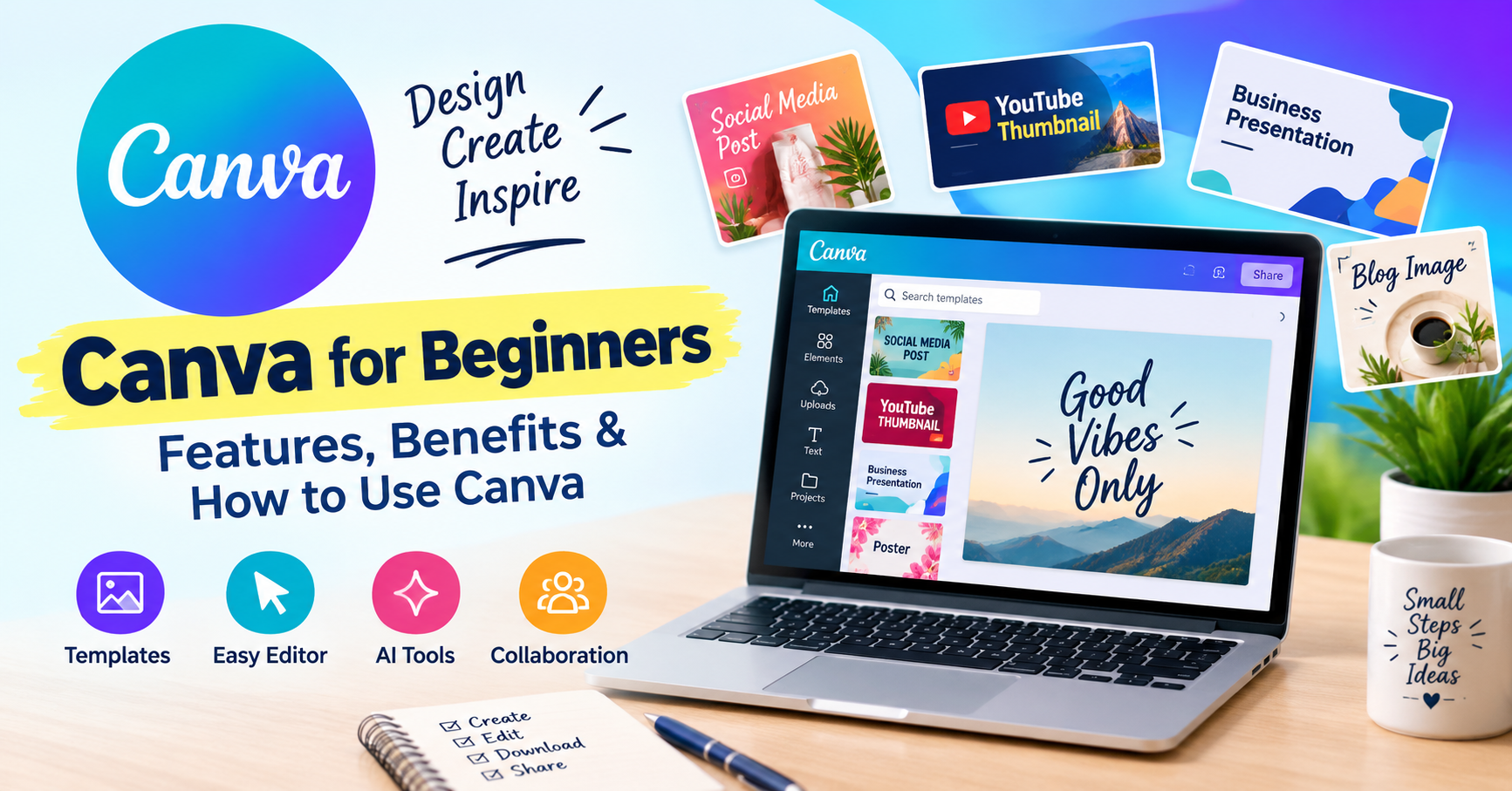
Canva: Features, Benefits, and How to Use Canva for Beginners
Introduction
Creating great designs is easier than you might think, especially with Canva. This popular graphic design tool helps you create attractive visuals without needing professional design experience. Whether you want to make social media posts, YouTube thumbnails, blog images, or presentations, Canva offers simple tools to get the job done. Its ready-made templates and easy-to-use editor save time and make designing more enjoyable. You can also use its AI-powered features to explore creative ideas and improve your workflow. In this guide, we’ll look at Canva’s features, benefits, and how beginners can start using it.
What Is Canva?
Canva is an online graphic design platform that helps users create different types of visual content. It comes with ready-made templates, photos, fonts, icons, and other design elements that you can use to bring your ideas to life.
One of the best things about Canva is its simple interface. You don’t need to be an experienced designer to get started. Just choose a template, make a few changes, and create a design that matches your needs.
You can access Canva through its official website or mobile app. It offers both free and paid plans, making it a practical option for students, bloggers, freelancers, and businesses.
Key Features of Canva
Canva includes several useful tools that make designing easier, even if you’re starting from scratch.
1. Ready-Made Design Templates
Not sure how to design something from scratch? Canva’s templates can help. You can find designs for Instagram posts, Facebook covers, YouTube thumbnails, presentations, posters, and much more.
Simply select a template and customize its text, colors, images, and layout. This saves time and gives you a starting point for your creative ideas.
2. Easy Drag-and-Drop Editor
Canva’s drag-and-drop editor is one of its most beginner-friendly features. You can add text, upload photos, insert icons, and move elements around with just a few clicks or taps.
There’s no need to learn complicated editing techniques before creating your first design.
3. AI-Powered Design Tools
Canva also offers AI-powered features that help users explore new creative ideas and work more efficiently. Depending on the available tools and your plan, you may be able to generate content, edit images, or get assistance with different design tasks.
These features can be especially useful when you need fresh ideas but aren’t sure where to begin.
4. Photo and Video Editing
Canva isn’t limited to static images. You can also create short videos, edit photos, add text overlays, and prepare content for different social media platforms.
For content creators who want to manage several types of visual content in one place, this can be a real advantage.
5. Team Collaboration
Working with other people on a project? Canva allows you to share designs and collaborate with teammates. This is useful for marketing teams, businesses, and bloggers who work with writers or designers.
Benefits of Using Canva
The biggest advantage of Canva is how easy it is to use. Beginners can create attractive designs without spending months learning professional design software.
It also helps save time. Instead of starting every project from a blank page, you can customize an existing template and make it your own.
For bloggers and website owners, Canva is useful for creating featured images, infographics, Pinterest graphics, and promotional banners. These visuals can make blog posts more appealing and help present information clearly.
Small business owners can use Canva to design advertisements, product promotions, business cards, and branded social media content. By using consistent colors, fonts, and layouts, they can also maintain a recognizable brand identity.
How to Use Canva: A Simple Step-by-Step Guide
Getting started with Canva is straightforward. Follow these steps to create your first design.
Step 1: Create an Account
Visit the official website at https://www.canva.com/ and create an account using one of the available sign-up options.
Step 2: Choose Your Design Type
Decide what you want to create. It could be a YouTube thumbnail, Instagram post, presentation, poster, or blog featured image.
Step 3: Pick a Template
Browse the available templates and choose one that fits your project. You can also start with a blank design if you prefer.
Step 4: Customize Your Design
Change the text, adjust the colors, upload your own images, and add design elements. Try to keep the layout clean and make sure the text is easy to read.
Step 5: Download and Share
Once you’re happy with the result, download your design in a suitable format, such as PNG, JPG, or PDF, depending on your project.
Is Canva Free to Use?
Yes, Canva offers a free plan with a selection of templates, design elements, and editing tools. It’s a good starting point for beginners, students, and bloggers who want to create designs without paying for a subscription.
Paid plans provide access to additional features and premium resources. Whether you need one depends on your design requirements, budget, and how frequently you use the platform.
Conclusion
Canva makes graphic design more accessible by combining easy-to-use editing tools, customizable templates, and creative features in one platform. You can use it to create social media graphics, blog images, presentations, videos, and marketing materials without having advanced design skills.
If you’re new to graphic design, start with Canva’s free plan and experiment with different templates. With a little practice, you’ll be able to create attractive visuals for your blog, business, or social media accounts.
Share this content: